Connecting AI to the apps you already use
The three blocks so far are separate tools. This one is the bridge: giving an assistant the ability to look things up in and write things to systems you already run. It is the newest of the four, the most powerful, and the one where the permission questions genuinely matter.
The three ways they meet
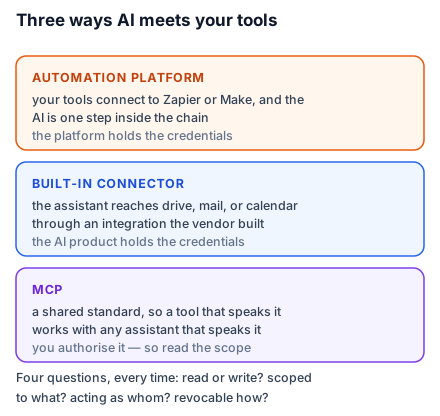
The automation platform as middleman. The one you already built. Your tools connect to Zapier or Make, the AI is a step, and the platform holds the credentials. Best understood, most controllable, and it only runs when triggered.
A built-in connector. The assistant itself connects to Google Drive, or your calendar, or your email, through an integration the AI vendor built. You authorise it once and the assistant can then look things up mid-conversation. Convenient, limited to whatever the vendor has built, and the permissions are held by the AI product.
MCP. The Model Context Protocol is a shared standard for how an AI assistant talks to an external system — the practical effect being that a tool which speaks MCP works with any assistant that speaks MCP, instead of each pair needing its own bespoke integration. That is genuinely useful, and it is the direction the whole category is moving. For a no-code builder today, the honest summary is: you will increasingly find MCP connectors offered for tools you use, connecting one is usually a matter of authorising it, and what you need to understand is exactly what you are authorising.
What "the assistant can see your calendar" actually means
When you connect something, you are granting an ongoing capability, not a one-time favour. Four questions are worth asking every single time, and they take about a minute.
Read or write? Reading your calendar is a very different risk from creating and cancelling events in it. Many connectors ask for both by default because it is simpler for the vendor. Grant read-only when read-only is what you need — you can always widen it.
Scoped to what? All of the drive, or one folder? All mail, or one label? Broad scopes are the default and are almost never necessary. A connector scoped to a single folder is a connector that cannot surprise you.
Acting as whom? Connected with your account, the assistant has your access — which for a manager or an admin can mean everything the organisation has. If a shared assistant is connected with an admin's credentials, every user of that assistant is effectively browsing with admin rights. This is the mistake worth being genuinely careful about.
Revocable how? Know where the list of authorised applications is for each service before you connect anything, and confirm you can remove one. If you cannot find the revoke button, do not press the allow button.
The pattern that makes connectors useful
The best use of a connector is not "the assistant does my job". It is look up, then draft.
Rohit's brief writer, connected to the studio's drive folder for a project, can pull the site measurements and the client's original email into the brief without anyone pasting them. It still produces a draft that a human reviews. The connector removed the fetching, which was the tedious half; the judgement stayed where it was.
Compare that to the tempting version — an assistant connected to email that reads incoming enquiries and replies to clients directly. Same technology, and the difference is that the second one takes an irreversible action toward a customer with no checkpoint, which lesson 9 warned about. The connector did not create that risk. The missing checkpoint did.
Assembling Studio Kalpa's system
Rohit now has all four blocks, and they connect into one loop. An enquiry arrives; the automation extracts it and writes a needs review row to the tracker and a note to the studio channel. A designer clears the row and opens the brief writer, which pulls the enquiry and the site notes from the project folder through a connector and drafts the brief. While writing it, they ask the document chatbot whether the studio has used that flooring before, and get three past projects with links. The finished brief goes back to the folder, which triggers a second automation that notifies fabrication.
Four blocks, one loop, no code. What Rohit built is not a product and does not need to be — it is four small, boring pieces of plumbing that between them removed most of a person's week.
Do this today: list every connector currently authorised on your main AI account — the setting is usually under connected apps or integrations. If anything on that list surprises you, that is the lesson.